The short answer
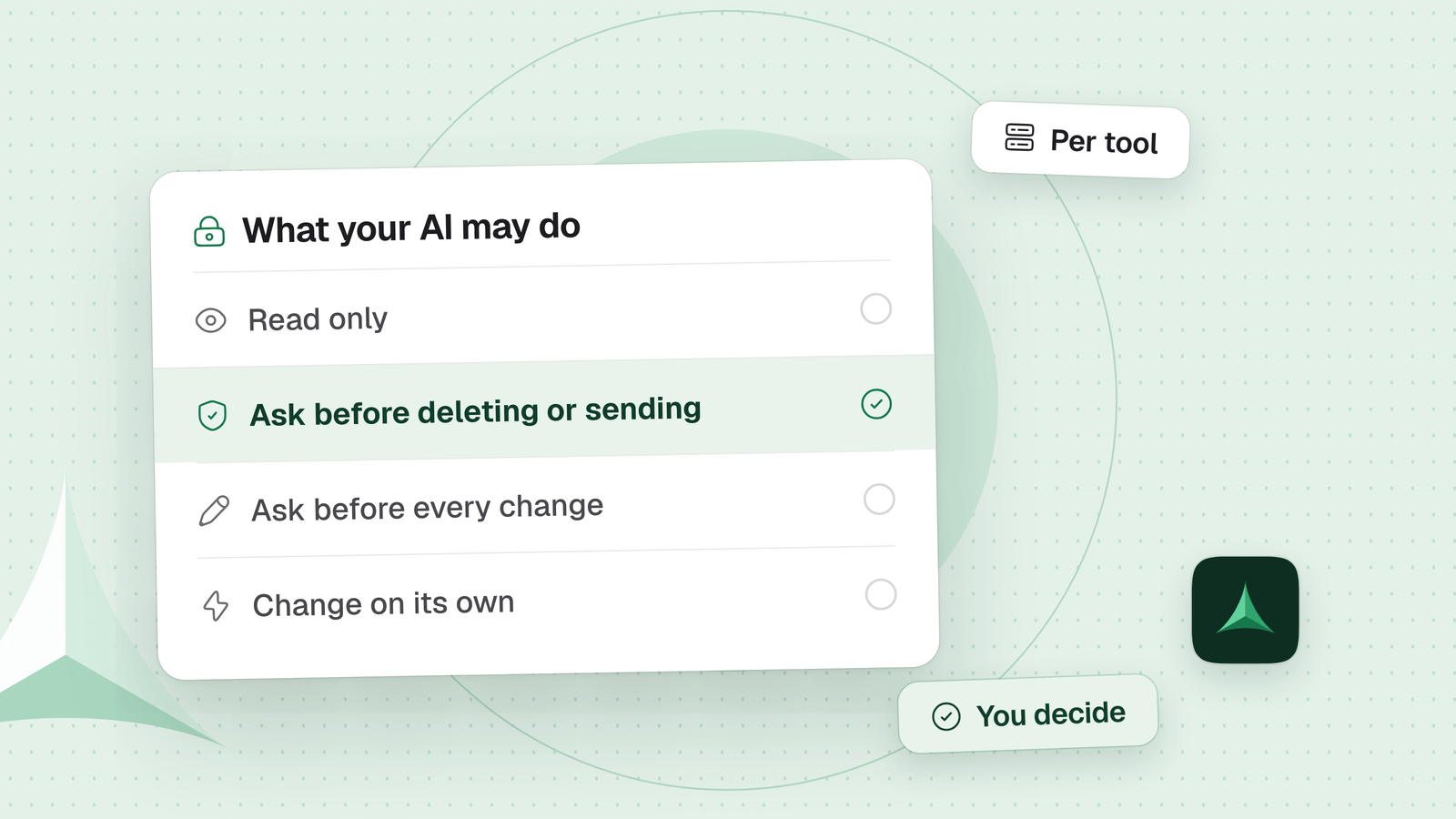
Give your AI read-only access first, then open only what each task needs. Use four levels: read only, ask before every change, ask before deleting or sending, act alone. You set them in your AI app, in the MCP server and in the account behind it. Each limit caps what a mistake can cost; none makes an access harmless.
In this guide
What are the four levels of access?
Pick one level per tool, and start with the first. These names are ours: each tool below offers some of them in its own words.
-
Read onlyStart here
Your AI can look things up and summarize them. It cannot change anything.
Good forA first try, or a service you cannot afford to break.
-
Ask before every change
Your AI reads freely. Every change waits for your yes, after you have seen it.
Good forA new task, or anything that matters.
-
Ask before deleting or sending
Your AI makes ordinary changes on its own. Deleting and sending wait for your yes.
Good forTools where an edit is easy to check and put back.
-
Act alone
Your AI changes things without asking.
Good forWork you can review afterward and reverse.
Where do you set a level in Claude, Cursor and VS Code?
Your AI app is the first switch. Each one lets you decide tool by tool, in its own words.
| AI app | How you set it | Good to know |
|---|---|---|
| Claude Code | Write allow, ask and deny rules, for a whole server or one tool: mcp__github, mcp__github__get_*. List them with /permissions. | Deny beats ask, and ask beats allow, however specific the allow rule is. In the default mode, Claude Code prompts on first use of each tool. |
| Claude (claude.ai) | Turn off the tools you do not need in the Search and tools menu. On Team and Enterprise plans, owners set a connector’s Tool permissions for the whole organization: Always allow, Needs approval or Blocked. | Claude’s help says to approve a tool for good only when you trust it to run unsupervised. In research mode, Claude can call connector tools without further approval, so turn off the write tools first. |
| Cursor | In Settings, Agents, Approvals & Execution, pick Auto-review, Allowlist or Run Everything. Allow tools by server:tool in permissions.json, such as linear:list_issues. | Cursor’s MCP page says it asks before using an MCP tool by default. Its Run Modes page recommends Auto-review, where a classifier can let an unlisted call run without asking you. For a prompt on every call, Cursor says to use Allowlist with an empty allowlist. Run Everything runs every call. Cursor says Auto-review is not a security boundary, and allowlists are not a security guarantee. |
| VS Code | In chat, open Configure Tools to switch a server’s tools on or off one by one. A server from another source asks for your trust when it first starts. | VS Code warns that local MCP servers can run arbitrary code on your machine. Add only servers from sources you trust. |
In Claude Code, the server name in a rule is the one you gave the server when you added it.
How do you narrow the server and the account behind it?
Narrow the access itself, and a loose setting in your AI app costs less. The server and the account behind it are the second and third switches.
| Tool | How you narrow it | Good to know |
|---|---|---|
| GitHub | Run GitHub’s MCP server with --read-only (or GITHUB_READ_ONLY=1). Choose what it offers with --toolsets or --tools, and remove tools with --exclude-tools. On the remote server, use the X-MCP-Readonly header or the /readonly URL. | Read-only mode wins over every other option. Give the server a fine-grained token: limited to chosen repositories, with minimal permissions and an expiry. |
| Notion | Notion’s hosted MCP works as you and reaches what you can reach. To narrow it, turn off its write tools in your AI app. With Notion’s self-hosted server, create an internal connection with only the capabilities the task needs: read, update, insert content. It sees no page until you share one, and sharing a page shares its child pages too. | Notion advises turning on confirmation before actions that change content. It no longer actively maintains the self-hosted server. |
| Your files | Start the MCP filesystem server with the folders it may use. It works only inside them. In Docker, add ro to a mount to make that folder read-only. | Its write_file tool overwrites an existing file. Our tip: keep the folder in Git or backed up. |
How do you start read-only and open up step by step?
Treat a new access like a trial. Each step gives your AI a little more, and you can stop at any of them.
- Connect it read onlyRead only
Use the server’s read-only mode, a read-only capability or a read-only mount. Ask your AI for a real summary. If that is all you need, stop here.
- Share only what the task needsRead only
List the folders, repositories or pages that matter, and leave out the rest. A self-hosted Notion connection sees nothing you have not shared, and the filesystem server stays inside the folders you list.
- Allow changes, with a question each timeAsk before every change
Switch writes on, but keep your AI app asking. Read each change before you say yes, on a copy or a test page first. In Claude Code, add ask rules for write tools and deny rules for the ones you never want.
- Let the safe parts run aloneAsk before deleting or sending
After a few good tasks, allow the reads and the changes you can put back. Keep the question for deleting and sending. In Claude Code, allow a pattern such as
mcp__github__get_*, which covers the tools namedget_…. In Cursor, addlinear:list_issuestomcpAllowlist. Check what changed after each task.
What do permissions not stop?
Permissions cap what a mistake can cost. They do not make an access harmless.
- An access you grant is an access. Notion says a connected client can use Notion MCP to reach content you can reach. A write permission lets your AI write.
- What your AI reads can give it orders. A page, an issue or a server can hide instructions in what it returns. Notion’s advice is to treat content returned by tools as untrusted.
- Read only can still leak. Notion warns that a connected client may send content returned by Notion MCP to systems outside Notion.
- Labels are hints. The MCP specification lets a tool say it is read-only (
readOnlyHint) or destructive (destructiveHint). Clients must treat those labels as untrusted unless the server is trusted.
Permissions work before a change. Putting one back afterwards is a separate job: Undo what an AI agent did
Can you set the levels once, for all your tools?
Yes, for the tools that go through Delta MCP. Delta MCP is a free app that sits between your AI apps and their MCP servers. Each connector gets one of four modes: Read only, Ask before every change, Ask before deleting or sending, or Change on its own.
- One mode per connector. Pick it on the Connectors screen, under When your AI wants to change something. Reading is never asked. The change reaches open conversations at your AI’s next call, with nothing to restart.
- Single actions set apart. In Advanced, set an action to Like the connector, to one of the four modes, or to Off. An action that is Off is gone from your AI’s view, and a call to it is refused.
- A card before a change you must approve. It shows each change before and after, and what can be undone. A card closed with no answer is a refusal: nothing is made.
- Activity after. Whatever the mode, each task shows with every change before and after. Undo puts back what it can, and says before you click what it cannot, such as a message already sent.
Deleting and sending are recognised from the name of an action. An action with an odd name counts as an ordinary change, and the mode decides as for any other. When you need to be sure, pick Ask before every change, or switch the action off. And like every permission here, the modes protect you from your AI’s mistakes: your AI still acts with your rights.
Connectors that run inside Claude, such as Gmail, Google Calendar and Google Drive, stay in Claude behind its own sign-in. Set their levels in Claude, as in the table above.
Questions
What is the safest way to connect an AI to Notion or GitHub?
Start read-only. On GitHub, run the MCP server with --read-only and use a fine-grained token limited to chosen repositories. Notion’s hosted MCP works as you, so turn off its write tools in your AI app. A self-hosted Notion server can be limited to chosen capabilities and shared pages. Keep your AI app asking before changes, then loosen one step at a time.
Is there a read-only mode for MCP servers?
It depends on the server. GitHub’s MCP server has one: --read-only, or the X-MCP-Readonly header on the remote server. The MCP specification lets a tool label itself read-only with readOnlyHint. Clients must not trust that label from an untrusted server. For a server with no read-only option, switch its write tools off in your AI app.
How do I stop Claude Code from using a write tool in an MCP server?
Add a deny rule with the tool’s name, such as mcp__github__merge_pull_request, through /permissions or your settings. Deny rules beat ask and allow rules. A tool named in a deny rule is removed from what Claude sees.
Does read-only mean my data cannot leave?
No. Read-only stops changes, not what your AI does with what it reads. Notion warns that a connected client may send content returned by Notion MCP to systems outside Notion. Content your AI reads can also carry instructions. Treat what tools return as untrusted.
Should I let my AI run MCP tools without asking?
For reads, often yes. For changes, the MCP specification says a human should always be in the loop, able to deny tool invocations. A middle path: allow the reads and keep the question for changes. Allow more only where you can review each change and put it back.
Can Delta MCP make a connector read-only?
Yes, for connectors that go through it. Set the connector’s mode to Read only: your AI can read, never change, and every change is refused. The other modes ask before every change, ask before deleting or sending, or change on their own. Connectors that run inside Claude, such as Gmail, stay in Claude and are set there.
Sources
- Claude Code, Configure permissions Allow, ask and deny rules and their order; MCP rule names such as mcp__github__get_*; the /permissions command; the default mode.
- Claude Help Center, Use connectors to extend Claude's capabilities Tool permissions per connector (Always allow, Needs approval, Blocked) and who can set them.
- Claude Help Center, Get started with custom connectors using remote MCP The Search and tools menu; research mode runs connector tools without further approval; hidden instructions in malicious servers.
- Cursor, Model Context Protocol (MCP) Cursor asks for approval before using MCP tools by default.
- Cursor, Run Modes The three run modes and where to set them. Auto-review is the recommended default, not a security boundary. An empty Allowlist asks every time.
- Cursor, permissions.json reference The server:tool format of the MCP allowlist; allowlists are not a security guarantee.
- VS Code, Add and manage MCP servers in VS Code Configure Tools toggles individual tools; the trust dialog for servers from other sources.
- GitHub, GitHub MCP Server Toolsets, individual tools and the read-only flag.
- GitHub, Server Configuration Guide Read-only mode as a flag, a header and a URL; excluded tools; read-only mode wins over every other option.
- GitHub Docs, Managing your personal access tokens Fine-grained tokens: chosen repositories, minimal permissions, an expiration.
- Notion, Internal connections A new connection has no page access; sharing a page shares its children; the capabilities of a connection.
- Notion, Notion MCP The hosted Notion MCP server reads and updates the content you can access.
- Notion, Hosting Notion MCP locally The open-source server is no longer actively maintained and needs your own Notion connection and API token.
- Notion, Security best practices A connected client reaches what you can reach; prompt injection; content leaving Notion; confirmation before changes.
- Model Context Protocol, Filesystem MCP Server Access limited to allowed directories; read-only mounts with ro; tool hints; write_file overwrites existing files.
- Model Context Protocol, Tools (specification 2026-07-28) A human in the loop able to deny tool invocations; tool annotations are untrusted unless they come from trusted servers.
- Delta MCP, Modes The four modes, single actions set apart, the approval card, and how deleting and sending are recognised.
- Delta MCP, Activity and Undo Every change before and after in Activity, and what Undo puts back and what it cannot.
Keep reading
- How to undo what an AI agent did in Notion, GitHub and filesAn AI agent changed or deleted something? See what changed, undo it in Notion, GitHub or your files, and what can never be taken back.
- MCP gateway vs proxy vs Delta MCP: which do you need?MCP gateway vs proxy: what each one does, where it runs and who it is for, plus a local app that checks each task and records each change.